Decide what belongs in a project total
For personal work time, count the minutes you spend working on the project. If an upload continues while you write for another client, track your current work. Running both counters would count the same minutes twice as your own effort. A 25-minute countdown can set a focus session, but it does not assign that session to a project for you.
Test the routine in your browser
Create two named counters and manually stop one before starting the other. The automatic switching setup below applies to the iPhone app.
Open online stopwatchesKeep a spreadsheet record
The export guide covers counter selection, CSV layout, and importing numeric durations. This article focuses on what to record during the day.
Read the CSV export guideIf you need editable time entries
Quire's official guide describes manual time entries and reviewing records in reports or timesheets. Those workflows become useful when a running project total is no longer enough.
Read Quire's time tracking guide01
Track the projects you need to make decisions about
Suppose you are writing a client newsletter and revising another client's landing page. You want to know how much of the morning each project received. Start with one counter for the newsletter and one for the landing page. A separate counter for every email adds work unless you need an email total.
Choose where calls and messages belong before you start. A call about the newsletter belongs to that project. A personal call is a break. If some work does not belong to either client, record it separately in your daily summary with a note instead of assigning it to whichever counter happens to be running.
Try this. Write down the question your first day of tracking should answer. Add detail only when it helps answer that question.
02
Set up a folder and one active stopwatch
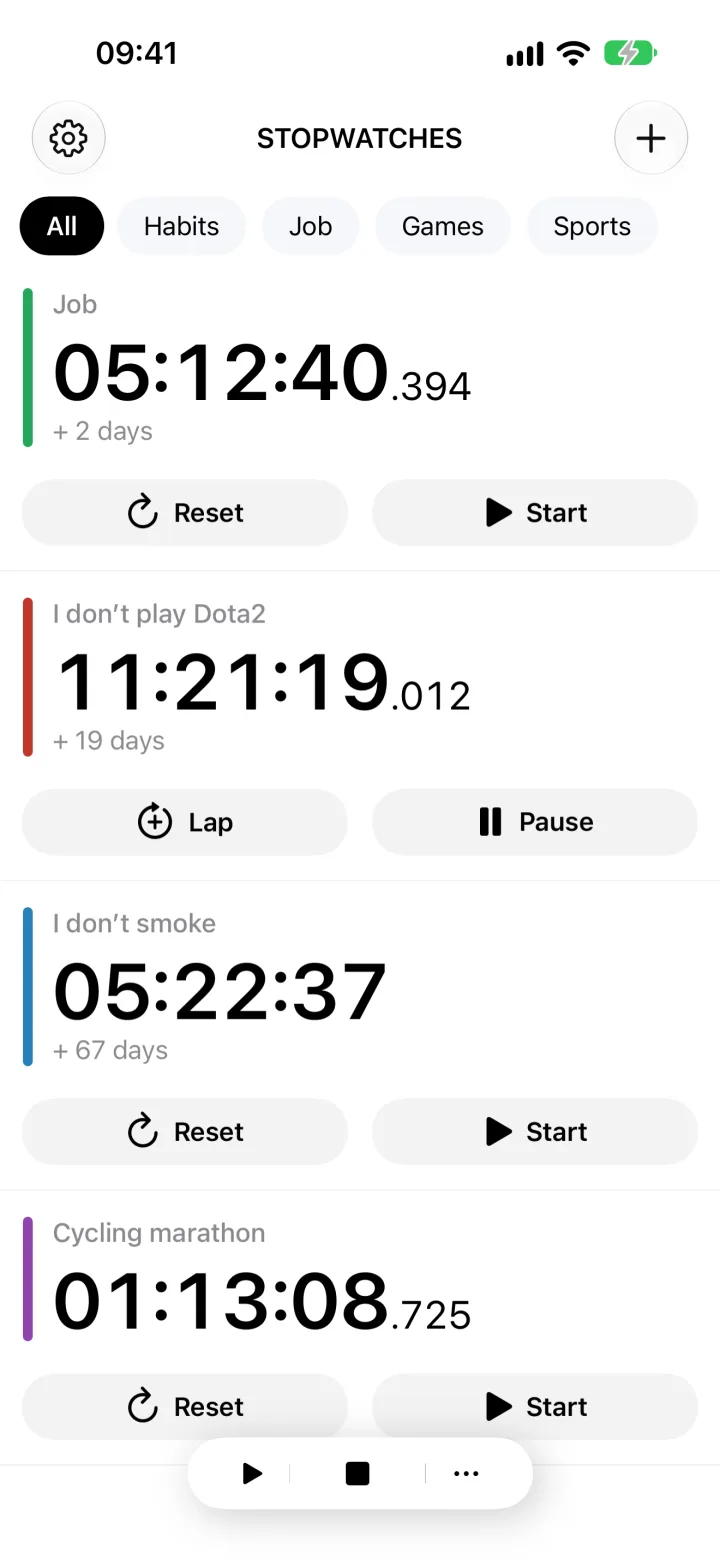
In Stopwatches, create a folder called "Client work" and add counters named "Newsletter 2026-10-18" and "Landing page 2026-10-18". Start both at zero for this daily workflow. The date keeps exported records identifiable. Folders organize the app, but folder membership is not included in the CSV.
Stop every running counter first. Open Settings, go to "Advanced settings", and turn on "Single Stopwatch Mode". With this setup, starting the other project's counter stops the previous one. Returning to a project resumes its accumulated time.
Start projects individually when you are measuring your own work. Starting a whole folder is unnecessary here. Try switching between two test counters before you prepare the records you will use for actual work.
Try this. Use the folder to organize counters, the names to identify projects and dates, and single stopwatch mode to help avoid overlapping personal work time.
03
Switch when your attention moves to another client
Here is a worked example. You draft the newsletter from 8:45 to 9:25, then revise the landing page until 9:45. At 9:25, start the landing page counter. With single stopwatch mode enabled, the newsletter stops at 40 minutes. The landing page reaches 20 minutes at 9:45.
Take a break from 9:45 to 10:00. Stop the landing page manually and leave both counters stopped. At 10:00, return to the newsletter for another 15 minutes, then stop it at 10:15. The newsletter now has 55 minutes, including its earlier 40 minutes.
Your project totals are 55 minutes for the newsletter and 20 for the landing page. That is 75 minutes of work during a 90-minute morning. The remaining 15 minutes were the break. When all counters start at zero and measure only your own effort, their sum should not exceed the time that passed on the clock.
Try this. Stop the current counter before taking a break. Automatic switching handles a change of project; it does not detect when you walk away.
04
Use a lap when the kind of work changes
Laps let you separate drafting, a client call, and revisions within one project. In the newsletter example, tap "Lap" at the end of the first 40 minutes while that counter is still running, before starting the landing page. Open the recorded lap, add the note "Drafting", and tap "Save".
When you return to the newsletter, the next lap resumes. After the final stop, its 15 minutes remain in the current lap. Add the note "Revisions" to that lap. You now have 40 minutes of drafting and 15 minutes of revisions within the newsletter's 55-minute total.
Stopping and restarting alone does not create a new lap. Without a lap marker, both work sessions stay in the same section. A note labels a lap; it does not turn it into a category with an automatic weekly total. To total all laps marked "Revisions", group their durations separately after export.
Try this. Keep stage names consistent. Mark the boundaries you actually want to review instead of recording every small interruption.
05
Save one checked daily total per project
Stop both counters. In Settings, choose "Export Data", then "In CSV format". Select the day's counters and tap "Save". Give your saved copy a name such as 2026-10-18-client-work.csv. Open it and check a counter name, total, and note before resetting anything.
In the first CSV block, Fulltime (seconds) holds each project's total in seconds. The newsletter example produces 3300 seconds for the newsletter and 1200 for the landing page. Their sum is 4500 seconds, or 75 minutes. Divide seconds by 3600 for decimal hours. Do not add a project's laps to its total, because those laps are already included.
Each row of durations is followed by a row of notes. A separate start-and-pause interval block follows a blank line. For a daily summary, take names and total durations from the first block rather than summing the whole file. The export uses commas between fields and decimal commas within numbers. Check that imported durations are numeric before calculating with them.
A running counter's exported total includes its current lap, but that lap is omitted from the lap columns. Stop before exporting to include that section too. For the next day, create records with the new date, or save and verify the old results before resetting and renaming the counters.
Try this. A daily summary can use Date, Project, and Minutes as its columns. Enter each daily result once, even if you saved several CSV snapshots.
06
Recognize when you need separate time entries
This routine suits personal tracking when you can start and stop counters yourself and review project totals with a few stage notes. It still needs attention. A counter left running through lunch will count lunch as project time.
If you keep accumulating time on the same counter across several days, its total no longer represents today's work. Keep days separate for the workflow described here. Adding Monday's cumulative total to Tuesday's cumulative total would count Monday twice.
Frequent backdated corrections, records from several people, or an approval process call for separate work entries. If a client or employer requires a particular reporting system, use its format and transfer checked durations into it.
Try this. After the first day, check whether you can answer your original question. If a date or work stage is missing, add that detail before expanding the routine.
Run a short test before tracking a workday
A few test actions will show whether the routine fits the way you switch projects.
- Create two test counters in a "Client work" folder and stop every other counter.
- Enable "Single Stopwatch Mode" and confirm that starting the second counter stops the first.
- Return to the first counter, record a lap while it runs, and save a note on that lap.
- Stop both counters, save a CSV, and find the names, total durations, and note in the file.
- Prepare zeroed counters with project names and the date for your actual work.
Fixing an incomplete daily record
What if I forgot to switch projects?
Stop the wrong counter and note what happened. If another record identifies the boundary, such as a call's end time, correct the daily spreadsheet and explain the change. If you do not know the exact time, label the correction as an estimate. The stopwatch cannot identify which project you were working on.
Can I add together several exports from the same day?
Do not add repeated snapshots of the same accumulating counters. Use the last checked export after stopping the day's counters. In the example, the newsletter's final 55 minutes already include its first 40 minutes.
Stopwatches
Set up a folder for your current projects.
In Stopwatches, add your projects to a "Client work" folder, include the date in their names, and test single stopwatch mode. Track one day, save the CSV, and compare the totals with the work you completed.
Open Stopwatches on the App Store