Choose what you need to measure
Decide whether you need a full effort time, individual lap durations, or a fixed work interval. Use a countdown timer for a two-minute drill. Use a stopwatch to find out how long an athlete actually takes to finish a distance.
Try independent counters
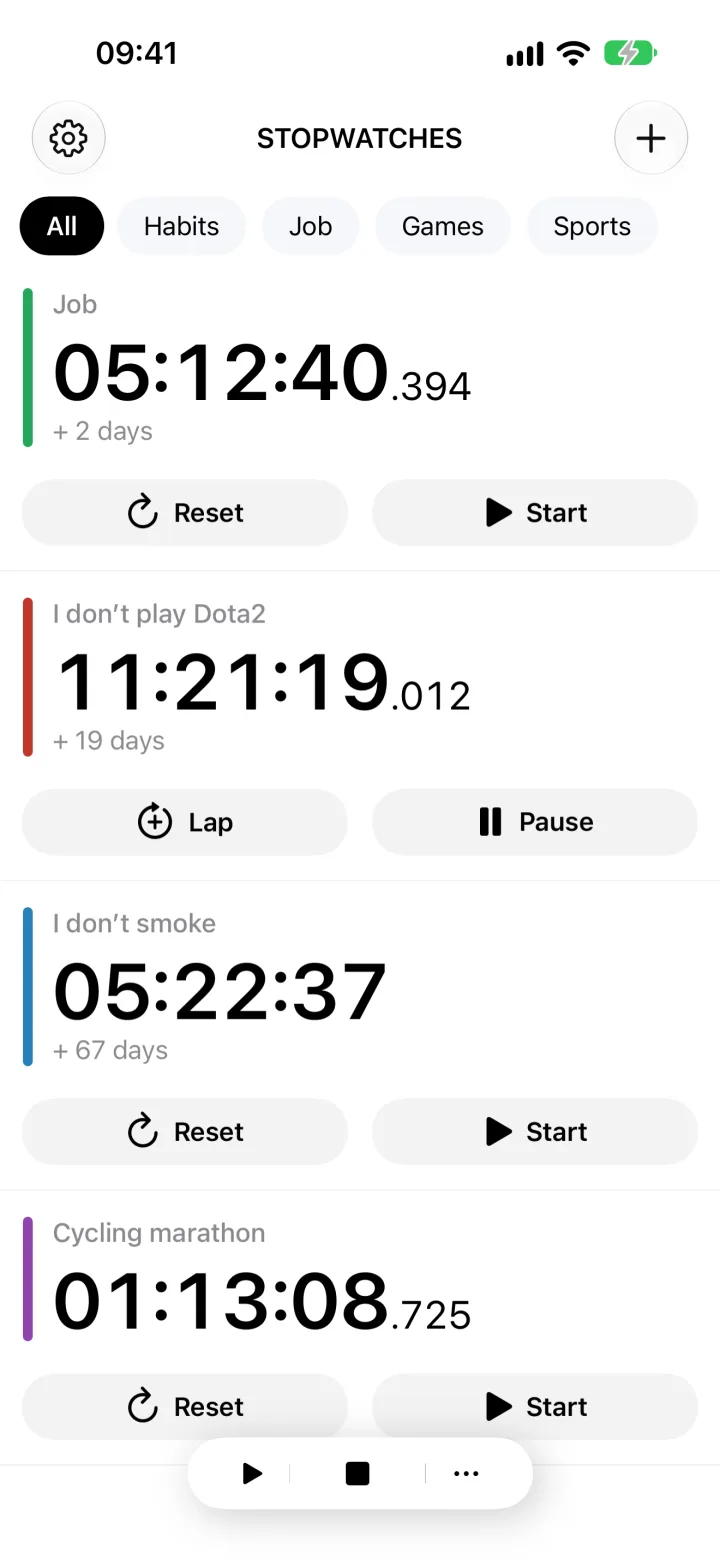
Create two named stopwatches in your browser and practice starting and stopping them separately.
Open the online stopwatchesRun a fixed work interval
For a drill that should last exactly two minutes, count down instead of measuring a finish time.
Open the online timersRecord laps in Clock
Apple explains how to record laps within one stopwatch session and stop it at the finish.
Read Apple's stopwatch instructions01
When one stopwatch becomes awkward
Suppose Maya and Leo are running 400 m repeats. Maya starts first, and Leo leaves 20 seconds later. A shared stopwatch reading at Leo's finish includes those 20 seconds of waiting. His own counter measures only the time since his start.
With a shared start, one stopwatch may be enough. If Maya finishes at 70 seconds and Leo at 74 seconds, their times are 70 and 74 seconds. The four-second gap between finishes is not Leo's 400 m time. If your stopwatch lists only lap durations, add them up to each finish and keep a separate record of who finished when.
Separate counters remove that subtraction step for staggered starts. They also let you pause one athlete or prepare a new attempt without changing anyone else's elapsed time.
At practice. Rehearse with two counters. Start the second later and check that each reading measures from its own start.
02
Build the athlete list before practice
In Stopwatches, create one counter per athlete. Use a short name or bib number, such as "Maya 12" and "Leo 8". Add a number when names repeat. Assign colors to help you find rows, but keep the names visible so you do not have to remember a color key at the finish.
Put the athletes for this effort in a folder such as "400 m, heat A". Leave later heats out if you plan to start the whole folder together. Compact view fits more counters on screen. Try the controls first to check that you can still select the right row.
Turn off single stopwatch mode in settings. When that mode is enabled, starting another counter stops the previous one. Multiple athletes need counters that can keep running together.
At practice. Check the folder roster and run two test counters at once before the group arrives.
03
Match each start and finish to its athlete
For staggered starts, press Start in each athlete's row as they leave. For a shared start, open the prepared folder and use the group start command in the bottom panel. That command starts counters in the selected folder. With no folder selected, it applies to all counters.
At a finish, stop only that athlete's counter. Avoid the group stop command while others are still running. Save the result before resetting a counter for the next attempt. Resuming a stopped counter adds to the previous elapsed time; it does not create a new effort starting at zero.
Two nearly simultaneous finishes still require two separate taps. A display showing fractions of a second does not remove your reaction delay or the time spent finding a row. If you cannot keep up with the finishes, reduce the heat size or share the timing duties with another coach. For official race results, use the timing method required by the event rules.
At practice. Practice two quick finishes in succession. If you select the wrong row, change the labels or use a smaller heat.
04
Use laps for checkpoints and notes for context
For a 1200 m effort, record a lap at 400 m and 800 m, then stop at the finish. Each lap belongs to that athlete's counter. Recording Maya's lap does not interrupt Leo's stopwatch.
For example, three lap durations of 76, 79, and 83 seconds total 238 seconds, or 3 minutes 58 seconds. The cumulative split at 800 m is 155 seconds. Those values answer different questions: the final lap shows the pace over the last 400 m, while the split tells you when the athlete reached 800 m.
After the effort, open a lap record and add a note such as "400 m, headwind". Record conditions that will help you compare attempts later. Save longer comments until you no longer need to watch other finishes.
At practice. Use the same checkpoints across the heat and agree on lap labels before anyone starts.
05
Export the heat before resetting counters
After the effort, check that the relevant counters are stopped and the names match the athletes. In the export section, choose CSV, select the counters for this heat, and tap Save. Use the system share menu to save the file.
The CSV includes names, running status, total time, and lap durations in seconds. Lap comments appear in a separate row beneath the result. A second block contains start and pause intervals. The file is not a ready-made finishing order: begin with the results block when reviewing the heat.
Give the saved copy a date, heat, and distance, such as "2026-10-08-heat-A-400m.csv". Compare efforts over the same distance using the same timing method. Check the spreadsheet import settings: fields are separated by commas, and numeric values use a decimal comma even when the app is in English.
At practice. Open the saved file and compare one athlete's result with the app before clearing the counters for another attempt.
Rehearse the full session once
Use test data to check the controls and the saved file. Fixing a label or setting is easier before the start.
- Create two named test counters and turn off single stopwatch mode.
- Start them at different moments. Record a lap on the first and stop it while the second keeps running.
- Test a group start in a folder containing only those two athletes.
- Add a lap note, export both results as CSV, and open the file.
- Reset the test readings and check the roster for the real heat.
Two timing mistakes to check
Why did starting the second athlete stop the first counter?
Check single stopwatch mode. It must be off for parallel timing. After changing the setting, test two counters before timing the real heat.
How do I keep recovery time out of the next repeat?
Stop the counter at the finish. Save that result and reset before a new independent attempt. Leaving the counter running and pressing Lap includes recovery time in the next interval.
Stopwatches
Prepare a test heat before practice.
Create two named counters in a Stopwatches folder. Test staggered starts, lap notes, and a CSV export before recording the athletes' results.
Open Stopwatches in the App Store