Choose the right kind of clock first
A stopwatch tells you how much time has elapsed. A timer counts down from a fixed duration and alerts you at the end. Use a stopwatch when the duration is unknown. Use a timer when dinner must come out of the oven in 20 minutes.
Stopwatch
For a workout, work session, game, or experiment with no fixed duration.
Open the online stopwatches01
Training several athletes
A coach may need to watch several people at once. Athletes can start at different times, cover different distances, or complete the same drill at their own pace. One shared stopwatch quickly turns the notes into guesswork.
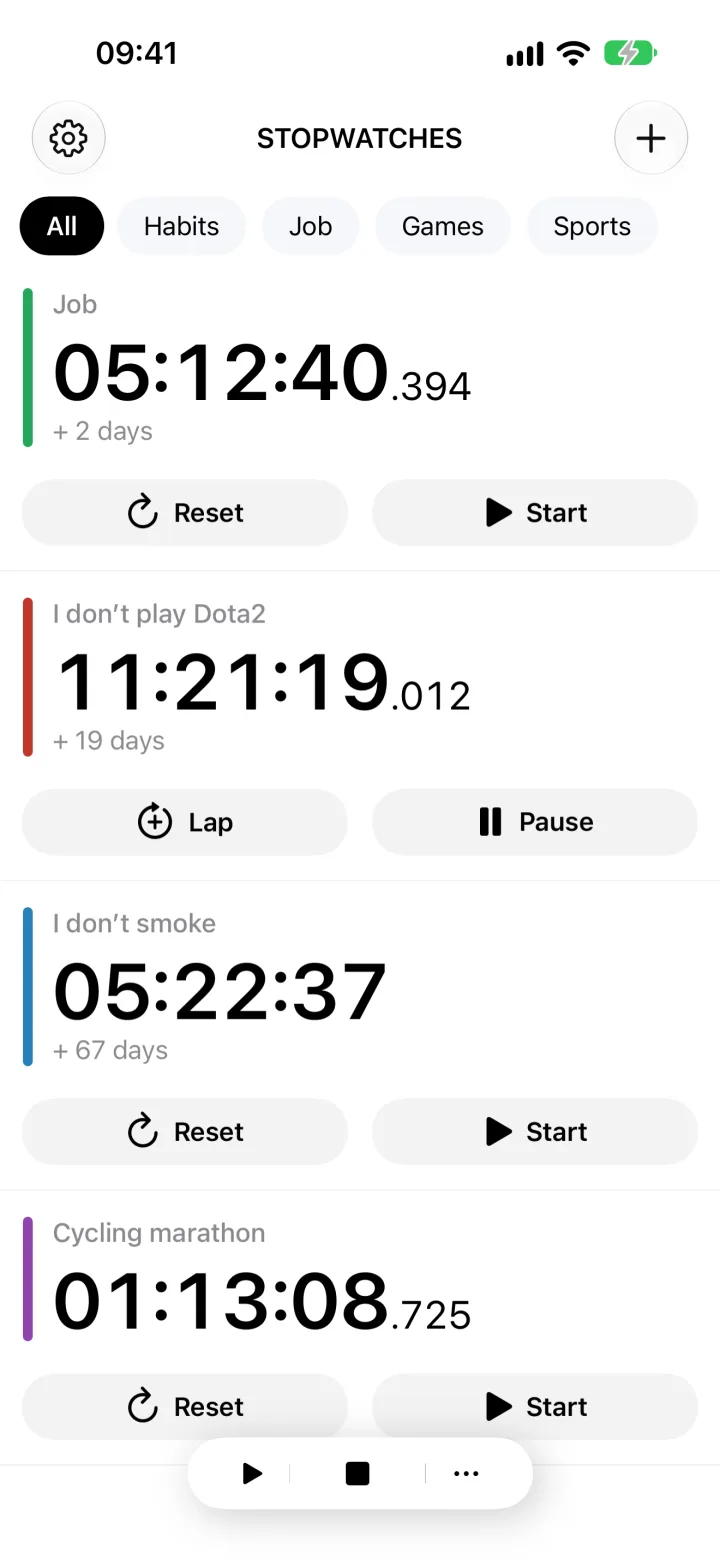
A named stopwatch for each athlete keeps the results separate. The Lap button records splits, while a note can identify the distance, drill, or attempt number. Every other stopwatch keeps running.
Set it up. Create a Team folder, give each athlete a color, and record a lap after every stage.
02
Tracking time by task or project
When a day involves several clients or projects, estimates made from memory are rarely useful. A named stopwatch shows the time actually spent on each task.
If you only work on one task at a time, enable single stopwatch mode. Starting a new counter stops the previous one. At the end of the day, export the results as CSV for a report or your own review.
Set it up. Name stopwatches after projects, keep them in a Work folder, and add a lap when the type of work changes inside a project.
03
Experiments and parallel processes
In a lab, workshop, or small production run, several processes often begin at different moments. Each sample, part, or batch then has its own elapsed time.
Independent stopwatches let you start tracking at the exact beginning of each process. Lap notes can mark a temperature change, inspection, tool change, or another checkpoint.
Set it up. Use short names such as Sample A and Sample B, then save checkpoints as laps with notes.
04
Races, competitions, and school relays
Participants do not always start together. Some enter the course later, and they may finish in any order. Stopping one shared stopwatch after every finish is awkward.
Start an independent counter for every participant and stop only that counter at the finish. Laps capture intermediate stages, and colors make the right name easier to find in a long list.
Set it up. Create the stopwatches before the event, arrange them in start order, and use compact view to fit more participants on one screen.
05
Board games and team challenges
Games without a strict limit can still benefit from knowing how long each player or team took. This works for quizzes, puzzles, speedcubing, and casual home tournaments.
Single stopwatch mode acts like a simple turn handoff. Starting the next counter stops the previous one. It does not replace a dedicated chess clock with time controls, but it works well for casual games and comparisons afterward.
Set it up. Name counters after players, match their token colors, and enable single stopwatch mode when turns should not overlap.
06
Home tasks and family routines
Sometimes you need to know how long something has been happening, not receive an alert after a fixed number of minutes. You might track a child's nap, time since plants were watered, charging time for several devices, or the length of home study sessions.
Folders keep long-running counters away from short tasks. Clear names matter more here than millisecond precision.
Set it up. Separate counters into Home, Kids, or Plants folders, and hide milliseconds for a calmer display.
07
Parallel cooking and recipe tests
A stopwatch is useful when you do not know a stage's exact duration and want to measure it. You can compare proofing times for two batches of dough or record how long browning takes at different temperatures.
If food must leave the heat after a fixed time, use a timer with an alert. Both tools often belong in the same kitchen. The timer reminds you, while the stopwatch records what happened for next time.
Set it up. Name counters after dishes or batches, then record the temperature and result in lap notes.
How to organize multiple stopwatches
A useful setup takes a minute and saves you from guessing which counter belongs to which task later.
- Give every stopwatch a short name that makes sense without extra context.
- Use colors for people, projects, or process types.
- Group related counters in a folder and choose compact view for long lists.
- Record laps for stages, and add notes only when they will help during review.
- Export the results as CSV when you need to save, compare, or share the data.
Common questions
Can lap times on one stopwatch replace multiple stopwatches?
Yes, when every participant or stage starts together and follows one sequence. Separate stopwatches are better for staggered starts, independent pauses, or parallel processes.
Can several stopwatches run at the same time?
Yes. Each stopwatch runs independently. You can start, stop, reset, or record a lap without interrupting the others.
Should I use a timer or stopwatch for cooking?
Use a timer for a known duration and an alert at the end. Use a stopwatch to measure the actual length of a stage when you do not know it in advance.
How can I save results from several stopwatches?
The app exports selected stopwatches and lap records as CSV for Excel, Numbers, or Google Sheets.
Stopwatches
Keep every counter on one screen.
Create named stopwatches, organize them in folders, record laps with notes, and export the history as CSV.
Open in the App Store