Choose the right setup
Lap records on one stopwatch work when everyone starts together. Create independent stopwatches when people or processes begin at different times.
Apple Clock
One stopwatch, total elapsed time, and lap records within that single run.
Read Apple's guideNo installation
Run several independent stopwatches directly in your browser.
Start the online stopwatches01
Create one stopwatch for each participant
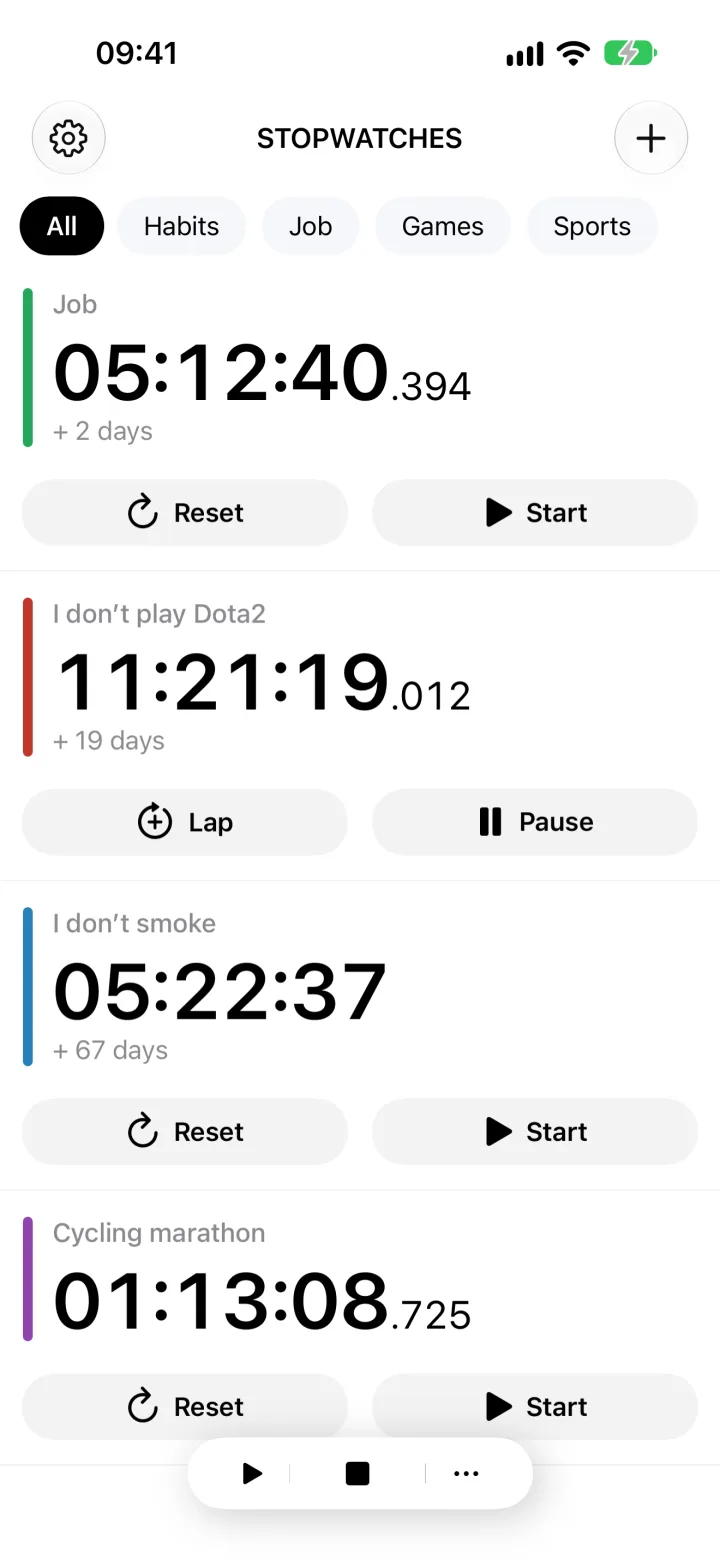
Open the app and tap the add button. Create one stopwatch for every person, task, or process you need to track.
Do not substitute laps for separate stopwatches when each item needs its own start, pause, or reset. A lap records an intermediate result inside one shared run.
Try this. Create two stopwatches for two runners, even if the second runner starts only a few seconds later.
02
Give each stopwatch a clear name and color
A name should say exactly what you are measuring. Anna, Sample B, and Website project will still make sense after a break. First and Second are much easier to mix up.
Color makes the right row faster to find. For a long list, group related stopwatches in a folder and switch to compact view.
Try this. Name every stopwatch before the start. There is rarely time to fix labels during a workout or experiment.
03
Start each counter at the right moment
Tap Start on the first stopwatch, then start each remaining counter when its participant or process begins. Every counter keeps its own elapsed time.
Turn off single stopwatch mode when counters must overlap. With that mode enabled, starting a new stopwatch stops the previous one. For a shared start, place the stopwatches in one folder and use the folder's bulk start action.
Try this. Before an important session, test the settings with two counters. Both times should increase at once.
04
Record laps without stopping the other counters
The Lap button records an intermediate result for the selected stopwatch. Every other stopwatch continues unchanged.
Add a note when you will need to identify that moment later. A note might contain the distance, set number, temperature, or work stage.
Try this. Use one naming pattern across the group, such as 400 m, 800 m, and Finish.
05
Stop, reset, and save each result separately
At the finish, stop only the relevant stopwatch. The others keep running. You can resume or reset one counter without changing the records beside it.
When you need the data elsewhere, select the required stopwatches and export them as CSV. The file opens in Excel, Numbers, and Google Sheets.
Try this. Do not reset the results immediately after the finish. Check the laps and export the data first.
Check the setup before the real start
This test takes less than a minute and checks the setting that can make the second stopwatch stop the first.
- Create two test stopwatches and give them different names.
- Confirm that single stopwatch mode is off.
- Start the first counter, then the second, and check that both keep running.
- Record a lap on one stopwatch and pause it. The second stopwatch should continue.
- Reset the test values and prepare the list for use.
Common questions
Can Apple's Clock app run multiple stopwatches?
Apple's Clock app provides one stopwatch with lap records. Use a separate app or online stopwatches when you need independent starts, pauses, and resets.
How are multiple stopwatches different from laps?
Laps divide one shared run into intervals. Multiple stopwatches have their own start, pause, and reset controls.
How can I start all stopwatches together?
Put the required stopwatches in one folder and use its bulk start action. Start each row separately when start times differ.
Can I save the results in a spreadsheet?
Yes. Export selected stopwatches and laps as CSV, then open the file in Excel, Numbers, or Google Sheets.
Stopwatches
Run every counter on one screen.
Create named stopwatches, assign colors, and control each counter independently. The free version supports unlimited stopwatches and up to three folders.
Open in the App Store